QuickScan App: User Guide for iOS user
QuickScan App: User Guide for iOS user
The document scanning app, QuickScan, is fast, precise, simple, and serves as the best mobile scanning App. The handy phone scanner app scans your documents into high-quality PDF. What makes the Scanner app the best is that you can use it with just one tap. Now let’s read about the Quickscan iOS user guide.
QuickScan best scanning app for iPhone, which is a handy Free scanner app, doesn’t run on advertising, data collection, or any other kind of the bugbears of apparently “free” software. QuickScan, the Scan to PDF OCR App was effectively used during the lockdown, which assisted students struggling to afford digital tools for education.
The remarkable thing about QuickScan, the best scanner app for android and free scanner app for iPhone is that it works well on both platforms. OCR lets you export to PDF, TEXT, and other formats.
QuickScan User Guide
For iOS Users
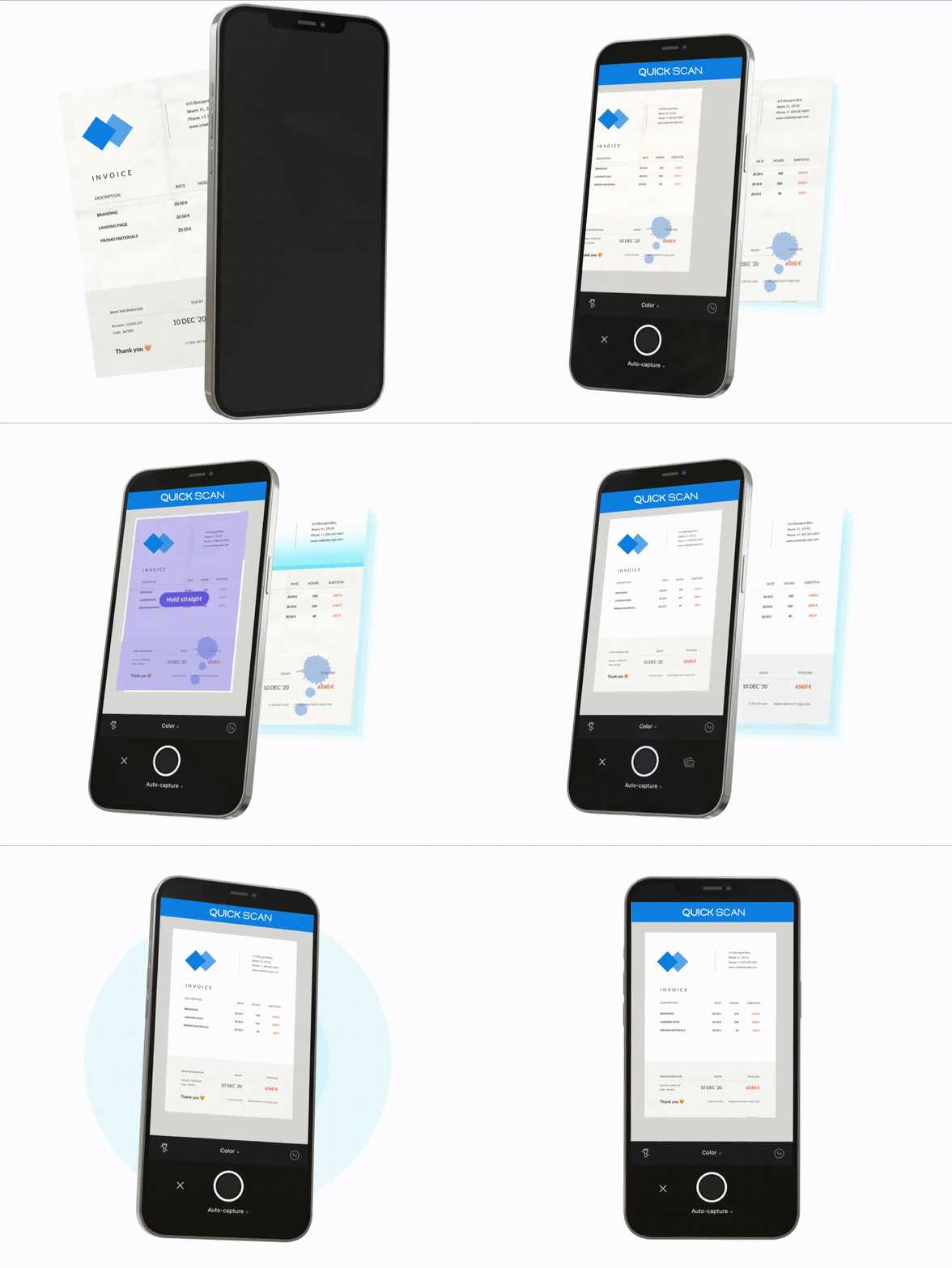
You can scan documents with iPhone with QuickScan App. It serves as an On-the-Go Document Scanner App and scans docs from anywhere. You can even scan photos with iPhone as it allows you to scan images and save them in the desired format: PDF & JPEG. Also, there is the possibility to edit the image as per your requirement. Scan multiple documents and convert them into one PDF.
Read more: You can also check how the Quickscan document scanner application work on Android devices. Check Quickscan user guide for Android users.
Easy To Use iOS scanner app requires you to follow some simple steps.
[WPSM_AC id=257]
Key Takeaways
With the QuickScan app, you can scan documents using iPhone or Android, create folders and find the document in seconds after document scanning. Also, the app automatically backs up scans in the cloud and shares documents via email, message, drive, and iCloud.
The precise QuickScan scan app for iPhone, which is a multi-linguistic and PDF scanner app works in English, Hindi, German, and so on. Following the steps mentioned above, you get easy access to scanning the documents and images as per your preferences.